
How to Make a Dime Dime Baby AI Video in 3 Steps
Make a 10-second Dime Dime Baby AI dance video from one photo in three clear steps, with practical photo and sharing tips.
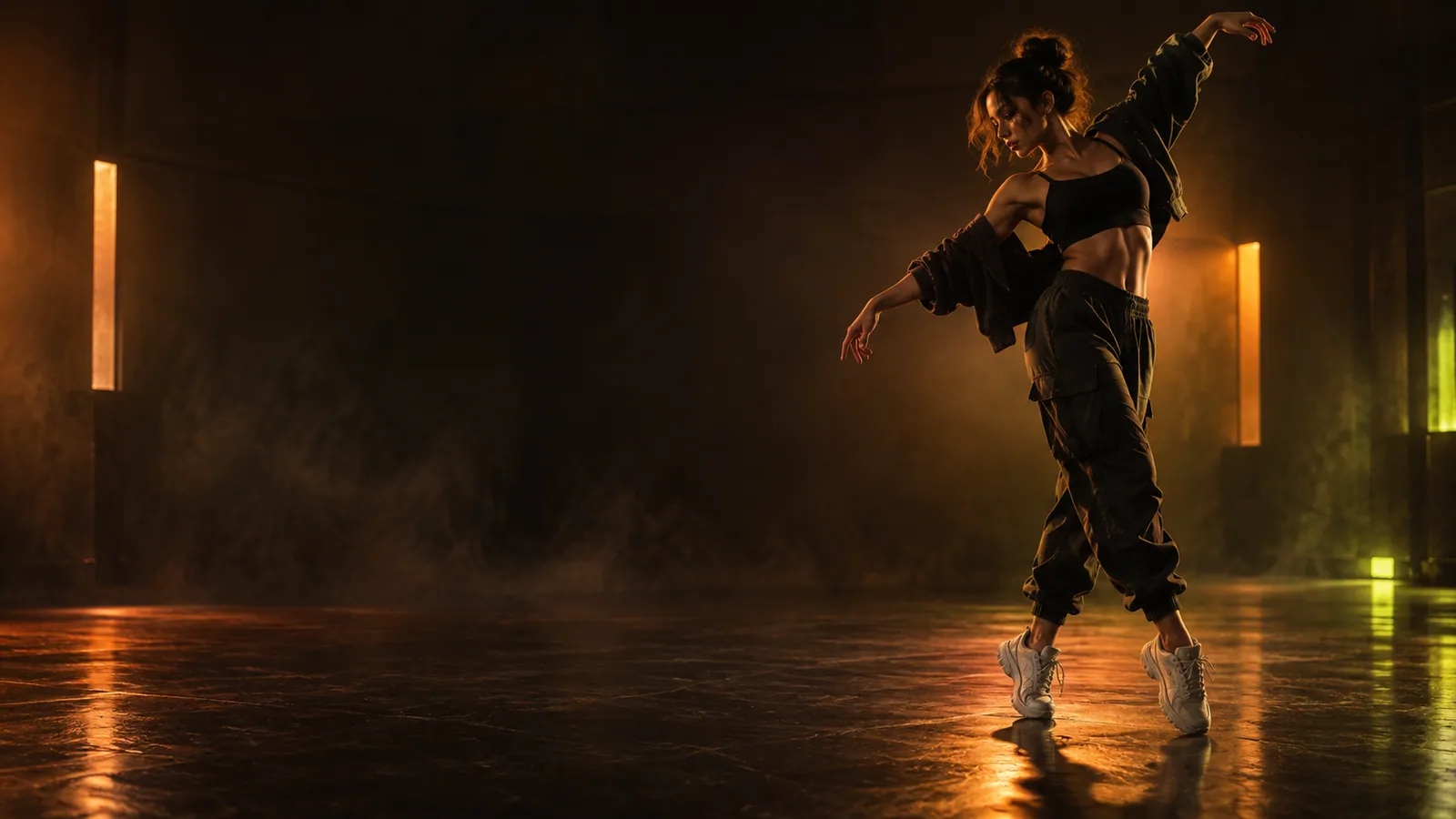
You do not need to record a dance, learn a timeline editor, or prepare a long prompt to make a Dime Dime Baby AI video. The shortest route starts with one well-chosen photo and three decisions: which picture to use, how long the clip should be, and whether the first preview is ready to share.
This guide walks through that complete path. If your photo is already ready, you can open the generator now and follow along.
What you need before you start
Prepare one JPG, PNG, or WebP image. The strongest starting photo usually has:
- one clearly visible subject;
- the full body in frame, including both feet;
- a natural standing pose facing roughly toward the camera;
- even light without deep shadows across the face or clothes;
- enough contrast between the subject and background;
- no large objects covering the arms, legs, or shoes.
A phone photo is fine. Sharp framing matters more than expensive equipment. If you are choosing between several images, read the complete Dime Dime Baby photo guide before spending a video from your pack.
Step 1: Upload one clear photo
Go to the Dime Dime Baby AI Video Generator and select your photo. The upload preview shows the whole vertical image so you can check the crop before continuing.
Pause for a quick visual check. Can you see the head, hands, knees, and feet? Is the subject larger and clearer than background people or objects? A dance uses the whole silhouette, so an image that works as a profile picture may still be too tightly cropped for a full-body result.
If the preview cuts off important details, choose another original photo instead of enlarging a low-resolution screenshot. Starting with more visible information gives the movement a cleaner visual foundation.
Step 2: Create the current 10-second video
The generator currently creates one 10-second vertical 9:16 MP4, using one video from your pack.
The 10-second length works well when you want:
- a compact first attempt;
- a quick reveal for a short post;
- several variations from different photos;
- a faster-paced edit with text or music added later.
The generator does not currently offer a 15-second output option. Our 10-second versus 15-second guide explains the pacing difference while keeping the current availability clear.
Step 3: Generate, preview, and download
Select Generate when the photo looks right. You will be asked to sign in only when you are ready to create. If you need videos, the pricing page shows one-time packs for 1, 3, or 10 videos before checkout.
When the result is ready, watch it once from beginning to end. Look at the overall movement before focusing on tiny details. Ask three practical questions:
- Is the subject recognizable throughout the clip?
- Does the full-body movement read clearly on a phone screen?
- Is the opening frame strong enough to stop a viewer from scrolling?
If the answer is yes, download the MP4. You can then add platform audio, a short caption, or a final cut in the social app where you plan to post it.
A simple first-video checklist
Use this checklist before you press Generate:
- The image has one main subject.
- The face is sharp enough to recognize.
- Both arms and both legs are visible.
- The feet are inside the frame.
- The background does not blend into the outfit.
- The current 10-second length matches the planned post.
- You have reviewed the exact one-time pack price on the pricing page.
This takes less than a minute and prevents the most common avoidable problems.
What if the first photo is not ideal?
Do not keep forcing the same difficult crop. A small change in source image can make a larger difference than repeated attempts with an obstructed selfie. Try a photo taken from farther back, a simpler outfit/background combination, or a more neutral standing pose.
If you plan to share the result as short-form content, leave visual breathing room around the subject and read the TikTok, Reels, and Shorts publishing guide before adding captions or platform audio.
Frequently asked questions
What do I need to make a Dime Dime Baby AI video?
You need one clear photo with a visible subject. Upload it and generate the current 10-second vertical video.
Do I need to upload a dance video?
No. The dance motion is already included, so the only visual input you add is one photo.
How long is the generated video?
The generator currently creates a 10-second video. A 15-second output option is not currently available.
Make your first Dime Dime Baby video
The best workflow is intentionally short: choose a complete photo, create the current 10-second video, and review the finished vertical clip. Start with your photo, or compare the available video packs before you create.
You may also want to read how Bby Wow AI relates to Dime Dime Baby or compare a CapCut template with a one-photo AI generator.
Keep exploring
Related Dime Dime Baby guides
Best Photo for a Dime Dime Baby AI Dance Video
Choose the best photo for a Dime Dime Baby AI dance video with practical guidance on full-body framing, lighting, pose, background, and common fixes.
Read articleFormat guide10 vs 15 Seconds: Current Dime Dime Baby Video Length
The generator currently creates a 10-second Dime Dime Baby AI video; learn how that length compares with a 15-second short-form clip.
Read articleTrend guideBby Wow AI vs Dime Dime Baby: What Is the Difference?
Learn how Bby Wow AI relates to Dime Dime Baby, what a one-photo dance generator does, and how filters, templates, and photo-to-video tools differ.
Read articlePut the guide into practice
Make your Dime Dime Baby video.
Upload one photo to create a 10-second video. Sign in only when you are ready to generate.